
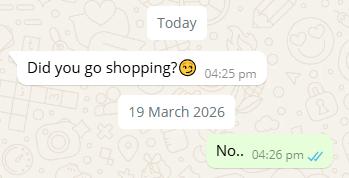
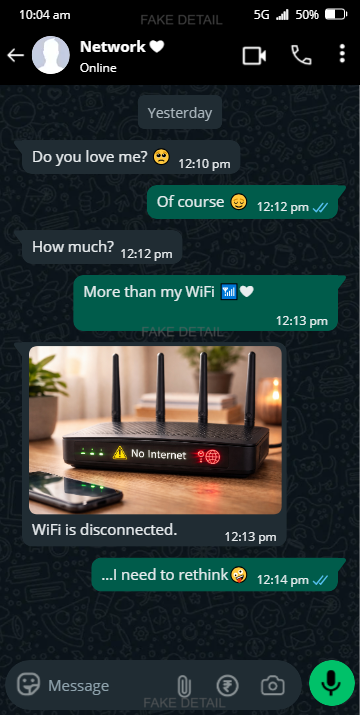
Fake WhatsApp Group Chat Mockup

John Doe
Member1,Member2
John Doe
Member1,Member2
26 November 2003 Wed, 26 Nov
Having payment issues? Try a different browser or clear your cache. Contact us if it continues.
(Only $0.27/day)
- ✅ Watermark-free image
- ✅ Advertising-free site
- ⬇️ Unlimited download
- ♾️ 25+ tools access
- 🔔 Early access to updates
- ⚡ Instant activation
- 🔐 Secure payment
- 🙈 No personal details required
(Only $0.33/day)
- ✅ Watermark-free image
- ✅ Advertising-free site
- ⬇️ Unlimited download
- ♾️ 25+ tools access
- 🔔 Early access to updates
- ⚡ Instant activation
- 🔐 Secure payment
- 🙈 No personal details required
(Only $0.43/day)
- ✅ Watermark-free image
- ✅ Advertising-free site
- ⬇️ Unlimited download
- ♾️ 25+ tools access
- 🔔 Early access to updates
- ⚡ Instant activation
- 🔐 Secure payment
- 🙈 No personal details required
(Only $0.67/day)
- ✅ Watermark-free image
- ✅ Advertising-free site
- ⬇️ Unlimited download
- ♾️ 25+ tools access
- 🔔 Early access to updates
- ⚡ Instant activation
- 🔐 Secure payment
- 🙈 No personal details required
(Only $1/day)
- ✅ Watermark-free image
- ✅ Advertising-free site
- ⬇️ Unlimited download
- ♾️ 25+ tools access
- 🔔 Early access to updates
- ⚡ Instant activation
- 🔐 Secure payment
- 🙈 No personal details required
Choose Payment Method
Annual — $120 / yearCrypto (USDT, BTC ...)
Pay with BTC, USDT, Tron & more...Debit or Credit Card
Visa, Mastercard & moreDownload not working? Click here to download again.
Related WhatsApp Tools
Need a quick share of a WhatsApp image or link? Turn any image or link into a scannable QR code in seconds using QR Code Generator Free and share it!
🎉 What’s New?
🎥 Screen Recording
Record your group chat preview while creating and editing your conversation.
📌 Capture your workflow directly from the preview.
🖼️ Download Image Formats
Download your finished group chat in your preferred image format.
📌 Choose the format that works best for your project.
Create a Realistic WhatsApp Group Chat
Need a WhatsApp group conversation for a video, presentation, social post, story, or product concept?
Our WhatsApp Group Chat Generator lets you create realistic-looking WhatsApp group chat mockups without having to create an actual group or use real conversations for screenshots.
Build the conversation yourself, choose the participants, customize the chat details, and preview the result as a WhatsApp-style interface. You can create simple conversations with Basic Chat or use Advanced Chat when you need more control over messages, participants, media, dates, reactions, calls, links, contacts, and other chat elements.
The goal is simple: create the exact chat visual you need without depending on a real WhatsApp.
Create Your WhatsApp Group Chat →
Create a WhatsApp Group Chat Mockup Visuals
Building a group conversation doesn't have to mean coordinating multiple real accounts or taking screenshots from an actual conversation.
With this WhatsApp group chat generator, you can build a fictional conversation directly in the editor. Add the people you want, choose who is sending each message, customize the group information, and adjust individual message details.
You can create a simple conversation or use the advanced options to make the mockup more detailed.
The tool lets you control things such as:
Basic Chat Options -
Group name and member names
Sender and receiver
Individual messages
Message time and date
Read status
Images and video thumbnails
Voice notes
Current and live locations
Voice and video calls
Documents
Links
Contacts
Deleted and disappearing messages
Custom notifications
Advanced Chat Options -
Message reactions
Edited messages
Media View
This makes it useful when you need a fake WhatsApp group chat mockup for visual or creative purposes without presenting it as a real conversation.
Add Multiple People to Your Group
A group chat needs more than one conversation participant, and you can configure the participants from the group editor.
Add receiver profiles and additional participants, then select who is sending a particular message. You can customize the participant names and profile details so the conversation matches the scenario you're creating.
The group profile also lets you set:
You can create a small conversation between a few people or build a larger group-style conversation with multiple contacts.
Write Messages and Customize Each Message
The message editor gives you control over how individual messages appear in the conversation.
Enter your message, select the sender, and configure the message details before adding it to the chat.
You can also customize:
-
Images and Video Thumbnails
Use the media options to add image or video thumbnails to your mockup and choose how the media should appear.
-
Message Time
Set the exact time displayed alongside a message. The editor supports both 12-hour and 24-hour time formats, so you can create the style that fits your mockup.
-
Read Status
Choose the message status from the given options: sending, sent, delivered, or seen.
-
Edited Messages
Need to show a message as edited? You can enable the “Mark as Edited” option for the message.
-
Media View
Customize how your sent media appears in the chat with three options: Normal, View Once, or Opened.
-
Reactions
Add a reaction to a message using options such as:
👍 ❤️ 😂 😮 😢 🙏 🔥
This is useful when you want the conversation to look more like a complete group-chat interaction rather than a series of plain text bubbles.
Date
You can add date separators to your conversation instead of manually placing dates inside messages.
Choose from options such as:
Custom dates are particularly useful when you're creating a conversation that needs to represent a specific point in time.
Create Voice Note Messages
Want to show a voice-message interaction instead of another text bubble?
The Voice Note option lets you choose an audio file and add it to the conversation.
You can then configure the message time, status, and reaction just like other messages.
This is useful for mockups where the conversation includes a mixture of text and audio messages.
Location
Location sharing is another option available in the advanced group chat editor.
You can create different location scenarios, including:
-
Current Location
Create a message showing a shared current location.
-
Share Live Location
Add a live-location style message and specify additional information such as notes and the live-location time.
-
Stop Live Location
Create the appearance of a conversation where live location sharing has been stopped.
You can also add a map image to make the location message more visually complete.
Add Calls
The Calls section allows you to create call-related entries in your WhatsApp-style conversation.
You can choose between:
You can also configure call details such as the call type, communication time, and the number of people joining the call.
This can be useful when a group-chat mockup needs to show that a conversation continued into a voice or video call.
Add Documents to the Conversation
The Docs option lets you create document-style messages inside the chat.
You can specify:
Notification
The notification section provides several message-notification styles.
You can create notification messages like:
For custom notifications, enter your own text to create the notification that fits your scenario.
These options are especially useful for recreating different types of system-style events within a fictional chat mockup.
Link
Links can be added to your group conversation in different formats.
The link editor provides options for Image Link and Text Link.
For image links, you can customize elements such as:
Text links can be entered directly into the message area.
This gives you more control over how shared websites or online resources appear within the conversation.
Contact
You can also create contact-sharing messages.
Choose between Single Contact and Multiple Contact, then enter the contact information or specify the number of contacts.
This lets you create group chat mockups in which participants appear to share contact information during the conversation.
Customize the WhatsApp Chat Appearance With Display Settings
The conversation itself isn't the only thing you can customize.
The Display Settings panel lets you change the appearance of the generated chat.
Layout Settings
Choose a Device Layout
The interface provides different layout options, including styles for:
This helps you create a mockup that matches the type of device or interface you want to demonstrate.
Dark Mode
You can enable Dark Mode when you want a darker chat appearance.
Text Size
Customize your message’s text size by choosing Default for the original text size or Custom to create your preferred text size.
Change the Chat Background
Customize the background used behind the conversation and adjust the chat color to create the appearance you need.
Chat Color
Customize the chat’s appearance by choosing Default for the original chat color or Custom to select your preferred color.
Header Settings - Customize Header Information
The header settings provide controls for details such as:
These small details can make a significant difference when you're creating a device-style chat mockup.
Footer Settings - Customize the Footer
You can also modify footer-related elements, including payment and chat-arrow options.
Your settings can be saved as a preset so you can reuse the same appearance for another mockup.
Save Your Chat Settings for Later
If you regularly create similar chat designs, you don't necessarily need to configure everything again.
The generator includes Saved Presets and lets you create a new setting.
You can save your preferred display configuration and reuse it for future conversations.
This can make repeated mockup creation much faster, especially when you're working on multiple designs that use a similar layout.
How to Make a WhatsApp Group Chat Mockup?
Creating a group conversation is straightforward.
Open the Group Chat editor
Select Basic or Advanced Chat according to your requirements.
Set Up the Participants
Add recipients and additional participants. Enter the names and profile details you want to use.
Enter Your Messages
Choose the sender and type the conversation into the message field.
Customize the Message
Set the time, status, reaction, date, media, or other available message options.
Add Advanced Elements
If your conversation needs them, add voice notes, locations, calls, documents, contacts, links, or notification messages.
Adjust the Appearance
Open Display Settings to choose the device layout, background, chat color, dark mode, header, and footer settings.
Preview Your Chat
Use the Preview option to check the finished conversation before saving it.
You can reset an individual form or reset the complete group whenever you want to start again.
What Can You Use a WhatsApp Group Chat Mockup for?
A generated chat can be useful anywhere you need a visual example of a fictional fake Whatsapp group chat mockup.
Common uses include:
-
Tutorials and Guides
Show readers what a messaging workflow could look like without publishing a fake group chat screenshot from a private conversation.
-
UI and Design Demonstrations
Designers and developers can use fictional chat content when demonstrating interface concepts or features.
-
Presentations
Create conversation-style visuals for slides, educational material, or demonstrations.
-
Videos and Creative Projects
Generate WhatsApp Group Chat for visual storytelling, video editing, thumbnails, or other creative work.
-
Social Media Content
Create chat-style graphics when a conversation is part of your content concept.
-
Prototyping
Test how different names, messages, media types, notifications, and other elements look together before using real content.
Why Use a Chat Generator Instead of a Real Conversation?
Creating a fake WhatsApp group chat mockup from scratch gives you control over the entire conversation.
You don't need to:
Add other people to participate in a real chat
Use personal details in your project
Expose private messages
Take multiple screenshots and edit each of them manually
Recreate different message states one by one
Use a real WhatsApp account for the mockup
Instead, you can create the fake chat yourself and adjust each element before producing the final result.
Important: A generated chat is a visual mockup. It should not be presented as genuine evidence of a real WhatsApp conversation or used to impersonate someone or mislead people.
WhatsApp Group Chat Generator Features
Here's a quick overview of what you can create:
| Features | Available options |
|---|---|
| Group participants | Multiple members and custom names |
| Message | Custom text and sender selection |
| Date | Today, yesterday, weekday, custom date |
| Time | 12-hour and 24-hour formats |
| Status | Message delivery status |
| Reactions | Multiple emoji reactions |
| Media | Images and video thumbnails |
| Voice Note | Upload an audio file |
| Location | Current and live location |
| Calls | Voice and video call entries |
| Documents | Custom document name, type, and size |
| Links | Image and text style links |
| Contacts | Single or multiple contacts |
| Notifications | Deleted, disappearing, encrypted, and custom notifications |
| Appearance | Android, iPhone, and desktop layouts |
| Display | Dark mode, background, chat colors, header, and footer |
| Presets | Save personalized display settings |
| Preview | Review the generated custom chat |
FAQs
What is a WhatsApp Group Chat Generator?
Can I Customize the Group Name, Timestamp, and Messages?
Can I Add Multiple People to the Group?
Can I Change the Group Name?
Can I Add Reactions to Messages?
Can I Create a WhatsApp Chat Mockup With Images?
Does This Tool Work on Mobile and Desktop?
Can I Add a WhatsApp-style Call to the Group?
Do I Need a Real WhatsApp Account?
Is a Generated Chat a Real WhatsApp Conversation?
Create Your WhatsApp Group Chat Screenshot
Build the conversation you need without using real data.
Add participants, customize timestamps, include media and advanced message types, then adjust the interface to match your preferred device style.
Start creating your Fake WhatsApp Group Chat Mockup today.
Chat Preview
Note : Email, Password, Address and Name generated from our website is 100% valid for use but emails generated here does not work like an actual email address. Even Address streets are randomly generated it doesn't match with real addresses. All details are randomly generated. The email address, password, name and address details generated by our website are for data testing purposes only. This will help you to not expose your email address to avoid spam and to protect your personal informations.